

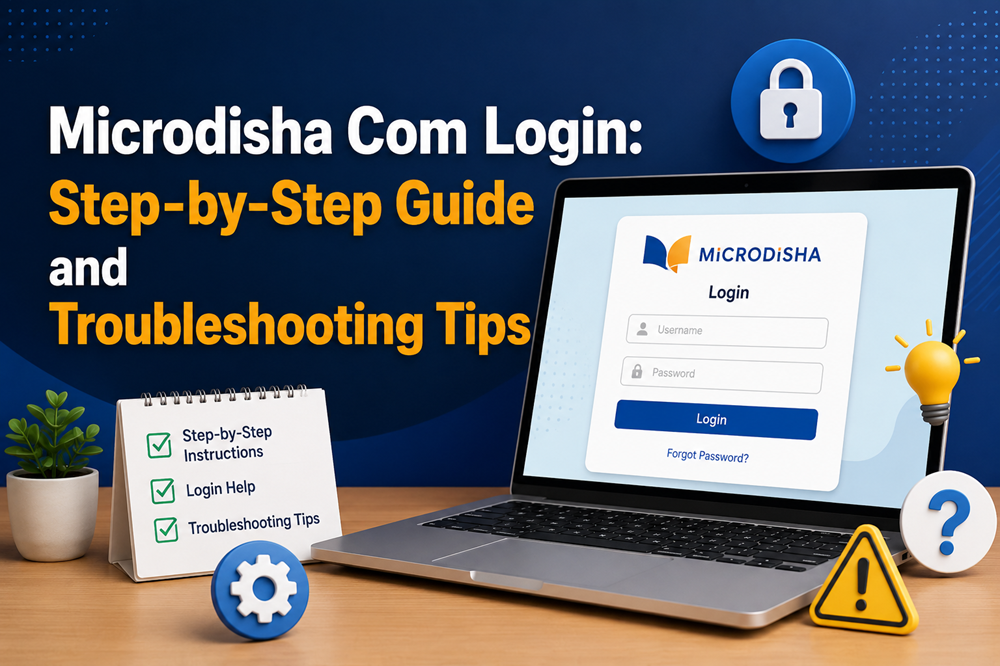
TL;DR: Microdisha.com is the official field force management portal for Micro Labs, a leading Indian pharmaceutical company. To log in, visit microdisha.com, choose between the Old or New DISHA version, and enter your username and password. iPhone users should access the portal through Safari for the best experience.
If you’re a Micro Labs field team member trying to access the DISHA portal, you’re in the right place. Whether you’re logging in for the first time or encountering an unexpected error, this guide walks you through every step — from the login process to fixing the most common issues users face.
The DISHA portal is central to how Micro Labs field teams track reports, manage their daily activities, and stay connected with head office. When login problems come up, they can interrupt your workflow and slow everything down. This guide gives you clear, practical steps to get back in quickly.
By the end, you’ll know exactly how to log in, what to do when something goes wrong, and who to contact when you need extra help.
What Is Microdisha.com?
Microdisha.com is the web portal used by Micro Labs — one of India’s prominent pharmaceutical companies — to manage its field force operations. The platform, known as DISHA, helps Medical Representatives (MRs) and field team members access reports, track performance, manage call planning, and stay aligned with head office goals.
The portal currently runs in two versions:
- DISHA Old Version — The original platform, accessible via the main login page at microdisha.com/general/login.aspx
- DISHA New Version — The updated platform, accessible at insights.microdisha.com, which includes enhanced dashboards and reporting tools
Both versions are available to all users. However, field team members are encouraged to use the New Version for accessing required reports. Head Office (HO) staff can use either version based on their preference or requirement.
How to Log In to Microdisha.com: Step-by-Step
How do you log in to the DISHA New Version at insights.microdisha.com?
The New Version is the recommended login path for field team members. Here’s how to access it:
- Open your browser and go to microdisha.com
- On the landing page, click “DISHA New Version”
- You’ll be redirected to insights.microdisha.com
- Select your Country (default is India)
- Enter your Username in the field provided
- Enter your Password
- Click “LOGIN” to access your dashboard
If you’re logging in from an iPhone, use Safari as your browser. The portal is specifically optimized for Safari on iOS devices, and other mobile browsers may not display or function correctly.
How do you log in to the DISHA Old Version?
If you need to access the Old Version:
- Go to microdisha.com
- Click “DISHA Old Version”
- You’ll land on the sign-in page at microdisha.com/general/login.aspx
- Enter your User Name
- Enter your Password
- Choose your preferred “Remember” setting:
-
- Remember my User Name only
- Remember my User Name as well as Password
- Click Sign In
Note: The Old Version does not have a self-service password reset option. If you forget your password, you need to contact your Division Admin directly.
Common Login Issues on Microdisha.com
Login problems are frustrating — especially when you need to access reports urgently. These are the most common issues users encounter on the DISHA portal.
Wrong Username or Password
This is the most frequent cause of login failure. Usernames and passwords on the DISHA portal are case-sensitive. A single uppercase letter in the wrong place will prevent access. Double-check what you’re typing before assuming your credentials are wrong.
Forgotten Password
On the New Version (insights.microdisha.com), you’ll find a “Forgot Password?” link on the login page. Click it and follow the prompts.
On the Old Version, there is no self-service reset. You must contact your Division Admin and request a password reset. Keep their contact details handy so this doesn’t slow you down.
Browser Compatibility Problems
Not all browsers work equally well with the DISHA portal. iPhone users, in particular, should only use Safari. Browsers like Chrome or Firefox on iOS may lead to display errors, loading failures, or login blocks.
On desktop, try using an updated version of Chrome, Edge, or Firefox if you’re having trouble loading the portal.
Page Not Loading or Blank Screen
A slow or blank page usually points to a connectivity issue or a cached browser problem. This is one of the easier issues to fix, and the solution takes less than two minutes.
Account Lockout
Entering the wrong credentials multiple times can trigger an account lockout. If you suspect this has happened, stop attempting to log in and contact your Division Admin to unlock the account.
How to Troubleshoot Microdisha.com Login Problems
What should you do if the microdisha.com login page won’t load?
Start with your internet connection. A weak or unstable network is a common culprit. Switch between Wi-Fi and mobile data to see if the issue is connection-related.
If the connection is fine, the problem is likely your browser cache. Here’s how to fix it:
- Open your browser settings
- Go to Privacy or History
- Select Clear browsing data
- Clear cookies and cached files
- Close and reopen your browser
- Try logging in again
This clears any outdated data that might be blocking the page from loading properly.
What should you do if your microdisha.com credentials are not working?
Go through this checklist before reaching out to your admin:
- Check Caps Lock — Make sure it’s off, as passwords are case-sensitive
- Re-type your credentials manually — Avoid copy-pasting, which can introduce hidden characters or extra spaces
- Confirm your username — Some users mistakenly use their email instead of their assigned username
- Try a different browser — If one browser isn’t working, switch to another
- On iPhone, switch to Safari — This is the recommended browser for iOS users
If none of these steps work, your credentials may have expired or your account may be locked. Reach out to your Division Admin.
What should you do if you see an error message on the login page?
Write down the exact error message you’re seeing. Common messages like “Invalid credentials” point to a username or password issue. Messages about session timeouts mean you’ve been inactive too long and need to log in again. If the error message is technical or unclear, take a screenshot and share it with your Division Admin or IT support team.
How do you switch between DISHA Old and New Version?
Go back to the main page at microdisha.com. You’ll see two buttons: “DISHA Old Version” and “DISHA New Version”. Click the one you want. You don’t need a different set of credentials — the same username and password apply to both versions.
What if the DISHA New Version is not displaying correctly on your phone?
This usually happens when you’re using an unsupported browser on a mobile device. Switch to Safari if you’re on an iPhone. For Android users, Chrome is generally a reliable option. Also, make sure your browser is up to date, as older versions may not support the portal’s interface.
Microdisha.com Login: Frequently Asked Questions
What is the web address for the microdisha.com login page?
Two login URLs depend on which version you use:
- DISHA New Version: https://insights.microdisha.com
- DISHA Old Version: http://www.microdisha.com/general/login.aspx
You can also access both from the main landing page at microdisha.com.
Which browser should iPhone users use for the microdisha.com portal?
iPhone users must use Safari. The DISHA portal officially recommends Safari for iOS devices. Other browsers on iPhone may not load the portal correctly or may block the login process.
How do you reset your microdisha.com password?
On the New Version, click the “Forgot Password?” link on the insights.microdisha.com login page and follow the on-screen steps.
On the Old Version, there is no self-service reset. You need to contact your Division Admin and request a manual password reset.
Who should you contact if you can’t log in to microdisha.com?
Contact your Division Admin. They can reset your password, unlock your account, and verify your login credentials. For technical errors that your admin cannot resolve, escalate to your organization’s IT support team.
Can HO staff use both versions of DISHA?
Yes. Head Office (HO) staff can access both the Old Version and the New Version of DISHA. Field team members are encouraged to use the New Version exclusively for accessing the latest reports and dashboards.
Why does the microdisha.com page redirect instead of loading a direct login?
The main microdisha.com URL is a redirect page designed to let users choose between the Old and New DISHA versions. This is intentional. Simply select the version relevant to your role and you’ll be taken to the appropriate login page.
Is the microdisha.com portal the same as micronavdisha.com?
No. Microdisha.com is the DISHA portal used by Micro Labs field force teams. Micronavdisha is a separate but similar field force portal used under a different program called Navdisha. They serve different organizations and teams.
Get Back to Work, Faster
Login problems shouldn’t cost you half your morning. The DISHA portal is straightforward once you know which version to use, which browser to open, and who to call when things go wrong.
To recap the key points:
- Use insights.microdisha.com for the DISHA New Version — it’s the recommended platform for field teams
- iPhone users: always use Safari
- Forgotten your password on the New Version? Use the “Forgot Password?” link
- Locked out or using the Old Version? Contact your Division Admin
- Blank pages or loading issues? Clear your browser cache and try again
Keep this guide bookmarked so you have a quick reference whenever a login issue comes up. And if you’re a new field team member just getting started, walk through the step-by-step login section above — it’ll take less than five minutes to get your first successful login done.